How to Set Up a Membership Card System for Your Club or Business


Summary of the Article
A membership card system has four parts: a member database, the cards themselves, a way to verify and check in members, and a process for keeping cards up to date. Set it up in that order. The most common mistake is designing the card before the rules behind it.
- Define your membership rules first: who counts as a member, grace periods, and what lapsed means.
- Clean your member database before issuing anything: duplicates, emails, and expiration dates.
- Pick a card format: Apple Wallet and Google Wallet cards update themselves; PDF and printed cards do not.
- Build the check-in flow: scan, identify, confirm status, record the visit.
- Test the full lifecycle with fake members before you issue to real ones.
A card is only as good as the system behind it. Here is how to build that system, step by step.
What a Membership Card System Actually Is
A membership card system is more than a card. It has four pieces that have to work together:
- The member database. One record per member, with their contact details, membership type, start date, and expiration date.
- The cards. Digital membership cards (in Apple Wallet or Google Wallet) or printed and PDF cards, each tied to a real record.
- Verification and check-in. A way for your front desk, event staff, or scanner to answer one question in seconds: is this person a member right now, and what are they entitled to?
- Updates. When someone renews, upgrades, or lets their membership lapse, their card and status should change without you reissuing anything.
If any piece is missing, the card becomes a promise you cannot keep. A beautiful wallet pass that shows an expired membership as active is worse than no card at all.
With that picture in mind, here is the setup sequence.
Step 1: Define Your Membership Rules First
Before you design a card or pick software, write down the rules the card has to enforce. This is the step organizations skip, and it causes most check-in problems later.
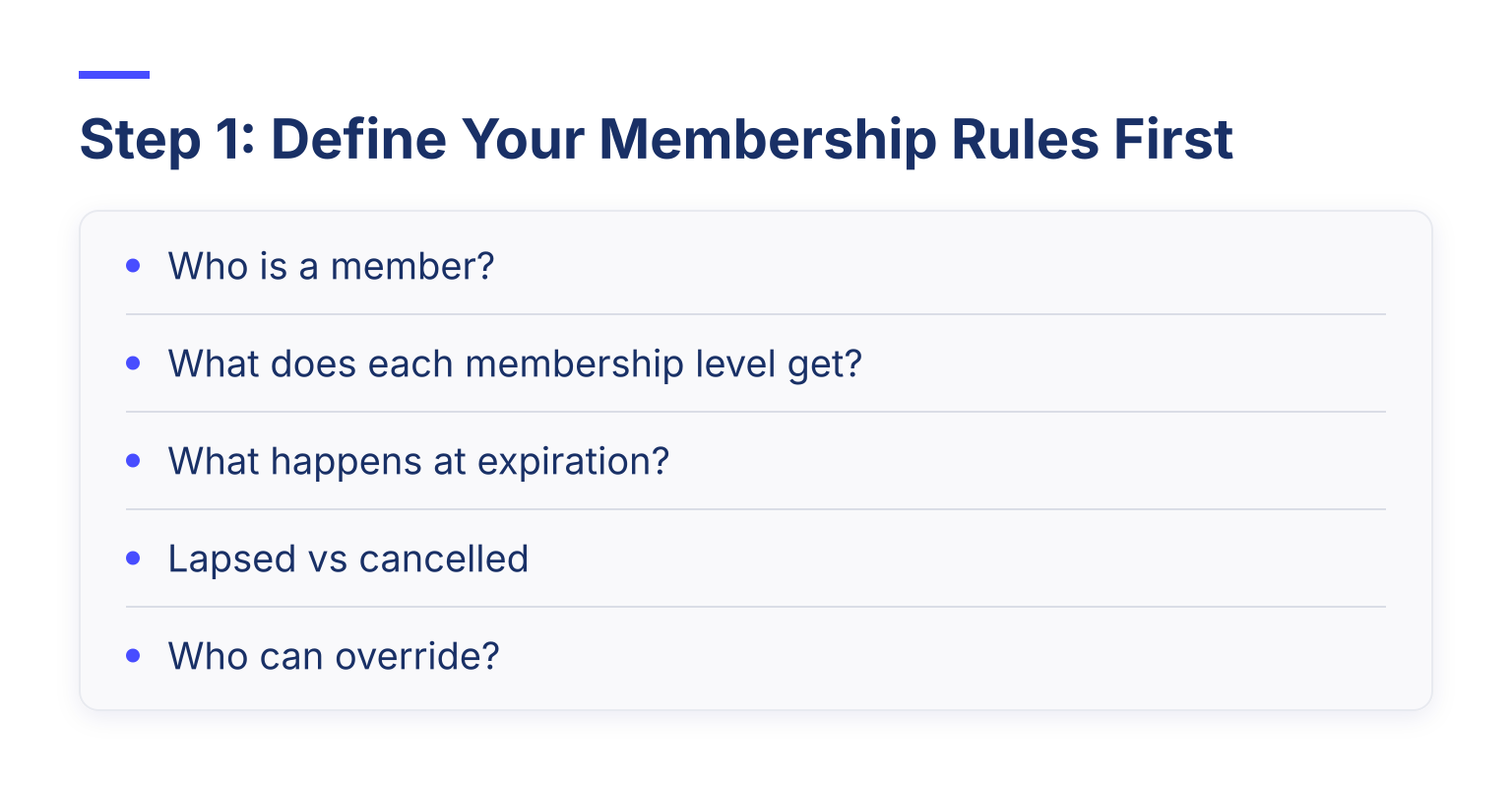
Answer these questions in writing:
- Who is a member? An individual? A household where one payment covers two adults and two kids? A company with five staff?
- What does each membership level get? Write the entitlements per tier in one list: free entry, discounts, guest passes, early booking.
- What happens at expiration? Is there a grace period, for example 14 days where a lapsed member still gets in? Or does access stop the day after expiration?
- Lapsed vs cancelled. These are different states. A lapsed member can renew and regain benefits. A cancelled member (or one you removed) should not. Decide which statuses exist in your system.
- Who can override? Decide in advance what a front-desk volunteer does when a scan fails. A simple rule, like "call the membership chair," is better than staff improvising.
If you have not yet set up your membership program itself, start there first. Cards come after your levels, pricing, and renewal rules exist. Our guide on how to set up a membership program covers that earlier work.
Step 2: Clean Your Member Database Before Issuing Anything
The card pulls data from your records, so a dirty database produces bad cards. Before you issue anything:
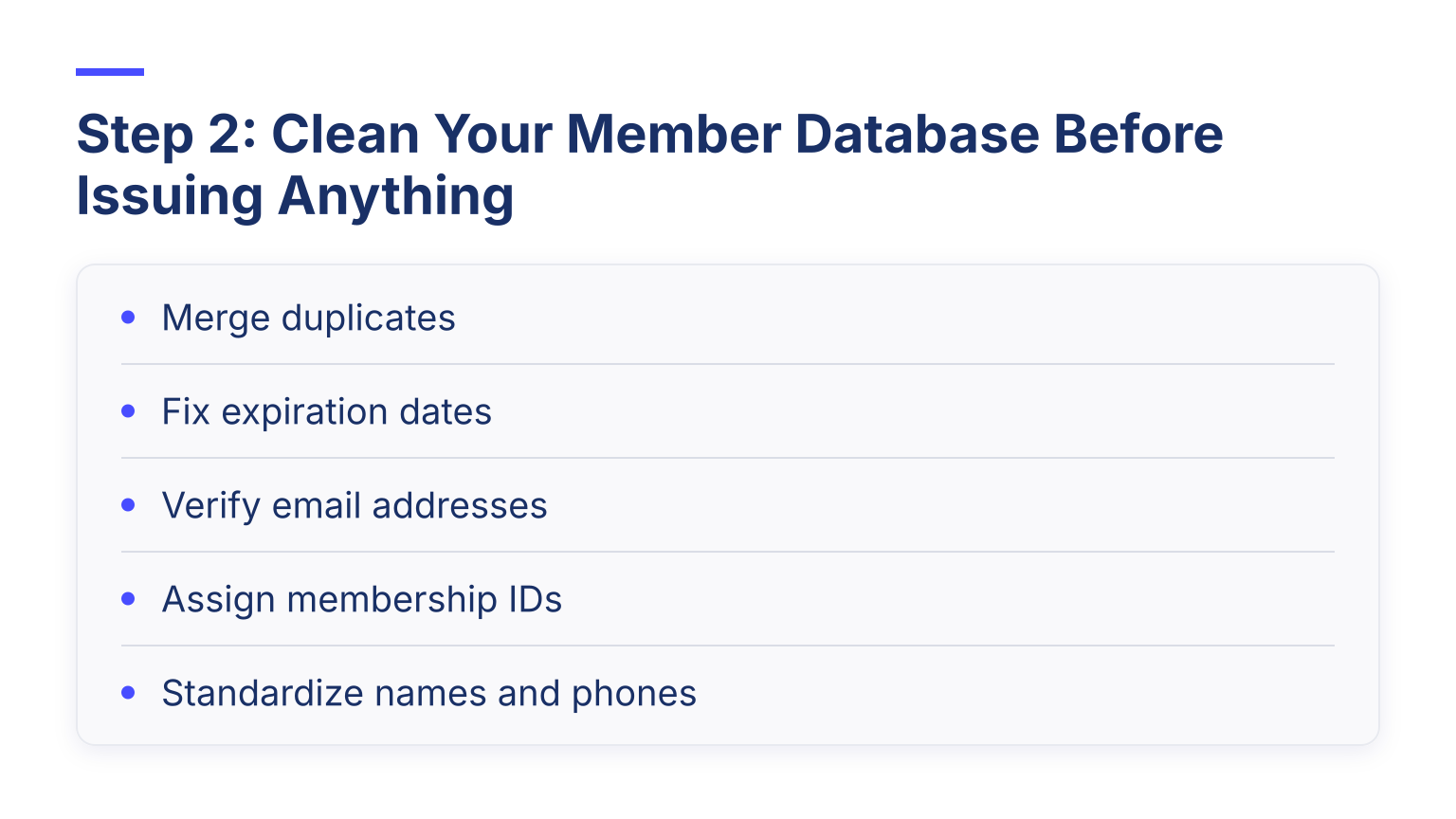
- Merge duplicates. Someone with two records gets two cards, and neither matches your counts. Merge duplicate member records into one, keeping the payment history.
- Fix expiration dates. Check that every active member has a real expiration date, not a blank field or a date from 2019. Check-in logic depends on this field.
- Verify email addresses. If you distribute cards by email, a bad address means a member who never gets their card. Bounce lists tell you which to chase.
- Assign membership IDs. Decide whether IDs are auto-assigned or follow a pattern. Consistent IDs make check-in and reporting much easier.
- Standardize names and phones. Use international phone format and consistent capitalization so searches at the front desk actually find people.
This step is tedious but it is the one that saves the most pain later. A modern member database makes most of this manageable, and if your records live in a spreadsheet today, our guide to creating a membership database in Excel includes a template you can clean up before importing.
Step 3: Choose Your Card Format and What Goes on It
You have two main formats, and the tradeoff is worth understanding honestly.
Apple Wallet and Google Wallet cards
Wallet passes live in the phone's wallet app, next to boarding passes and payment cards. They feel official to members, update automatically when you change the underlying record (Apple documents how membership passes can be dynamically updated), and stay on the lock screen where members can find them. Google Wallet works the same way on Android and also stores loyalty and membership cards; its help pages show how members add and use these passes.
Downsides: members without a smartphone cannot use one, and a pass can show stale information for a moment if the member never refreshes it.
PDF or printed cards
A card as a PDF attachment or a printed plastic card works for everyone and can double as a keepsake. The tradeoff: it is static. If a membership expires, the printed card still looks valid. Print runs also cost money every time your design changes.
A common approach is wallet cards as the default, with a printable PDF option for members who ask.
What goes on the card
Put on the card:
- Member name and membership ID
- Membership level and expiration date
- A QR code or barcode that maps to the member record
- Your logo
Keep off the card:
- Home addresses, phone numbers, or birth dates
- Anything confidential about benefits a stranger could exploit
The card is a pointer to the database, not the database. If a card is lost or shared, the worst outcome is that someone's QR code leaks, not their personal data.
For accessibility, make sure the card text meets a reasonable contrast standard (WCAG suggests at least 4.5:1 contrast for normal text) and that the member's name is large enough to read. If you want the full design walkthrough, see our guide on how to customize digital membership cards.
Step 4: Set Up Verification and Check-In
This is the step that turns cards into a working membership card system. Every check-in follows the same five moves:
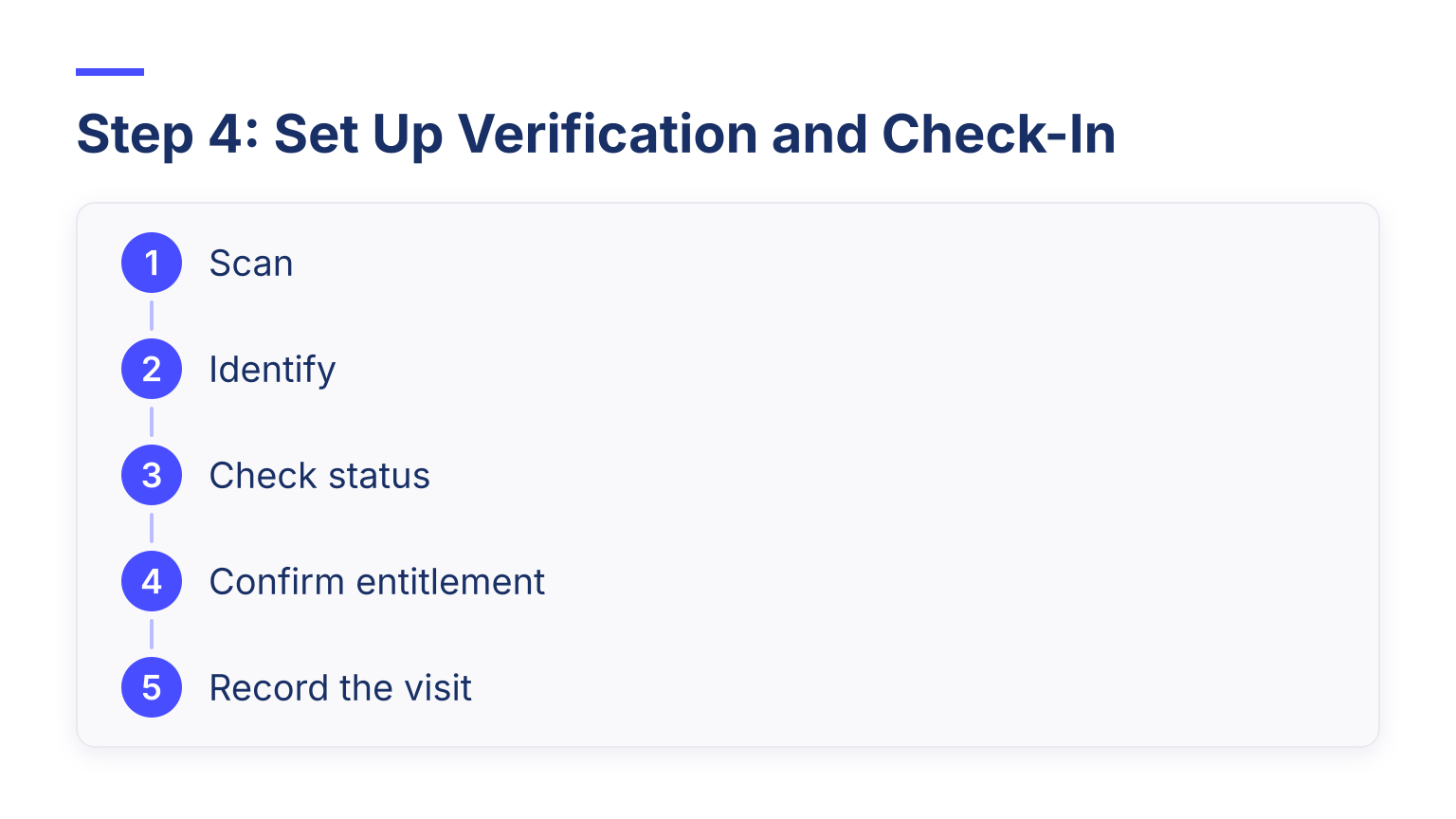
- Scan. Staff or a kiosk scans the member's QR code (or the member taps an NFC reader where supported).
- Identify. The scan resolves to a specific member record.
- Check status. Is the membership active? The system compares today's date against the expiration date and the status you defined in Step 1.
- Confirm entitlement. Does this level get in today, or get this discount, or bring guests?
- Record the visit. Log the check-in with a timestamp. This becomes your attendance data.
To make this run smoothly:
- Pick your devices. A tablet at the front desk, staff phones, or a self-service kiosk all work. Some wallet passes support NFC tap as well as barcode scan; Google's redemption methods guide explains both. Test your scanner with the QR code style you chose before launch day.
- Limit staff permissions. Front-desk staff should be able to check people in and look up records, but not edit member data or payments.
- Plan for failure. Decide what happens when the internet is down or a member's phone battery is dead. A fallback lookup by name or membership ID solves both. Without a fallback, you will have a queue and a frustrated volunteer.
Our guide to QR code check-in systems goes deeper on choosing the right setup for your venue.
Step 5: Issue and Distribute the Cards
With rules defined, data clean, and check-in configured, distribution is the easy part:
- Email the card. Most membership systems send each member a personal link to their card. Email is the main channel.
- Offer a portal download. Members who lose the email should be able to log in to a member portal and get their card again. This alone removes a huge share of support requests.
- Use one-click wallet save. The link should open an "Add to Wallet" or "Save to Google Wallet" button, so the member taps twice and is done. Apple's own guidance notes that passes do not require a companion app, which is why this works so smoothly.
- For QR cards, explain the code. A one-line note like "show this code at the front desk" prevents most confusion.
If your cards rely on QR codes specifically, our walkthrough on creating digital membership cards with QR codes covers the creation details.
Step 6: Test the Full Lifecycle Before Launch
Issue test memberships to fake members and run the whole lifecycle:
| Test | What you should see |
|---|---|
| New member joins | Card issued, check-in succeeds |
| Member renews | Card updates expiration, old scan fails, new one works |
| Membership expires | Check-in shows expired; grace period behaves as defined |
| Tier upgrade | New benefits appear; check-in reflects the new level |
| Phone offline or dead battery | Staff fallback lookup finds the member and records the visit |
| Cancelled member | Check-in refuses access |
Fix anything that fails now, not in front of 40 people waiting at the door.
A Worked Rollout Plan
A reasonable rollout for a small organization takes about eight weeks:
- Weeks 1-2: Write the membership rules and choose your card format.
- Week 3: Clean the member database.
- Week 4: Design the card and configure check-in.
- Week 5: Pilot with 10 to 20 friendly members and staff. Fix what breaks.
- Week 6: Train everyone who will run a scanner, including the fallback procedure.
- Week 7: Announce to members and issue cards in waves so support requests stay manageable.
- Week 8: Check adoption. Follow up with members who have not saved their card.
Common Pitfalls (and How to Avoid Them)
- Screenshot QR sharing. Members screenshot their QR code and send it to a friend, who checks in as them. Mitigations: rotating QR codes, checking the name on screen, and check-in location tracking that flags impossible visits. Google documents how rotating barcodes refresh every minute or so, so a screenshot expires quickly and a reader only accepts the newest version.
- Stale wallet passes. A member renewed, but their pass still shows the old expiration date because they never refreshed it. Your database, not the pass on screen, is the source of truth. Train staff to trust the scan result over what the card displays.
- Duplicate records created during rollout. When members re-register instead of renewing, you get doubles. Send renewal reminders to existing members before you launch new cards, and merge duplicates weekly for the first month.
- Untrained front-desk staff. The scan fails, the volunteer freezes, the queue grows. A laminated one-page "if this, then that" sheet at the desk fixes most of it.
- Skipping the database cleanup. Every bad card traces back here.
How This Works in a Modern Membership System
Everything above becomes simpler when your database, cards, and check-in live in one system. As a worked example: Join It keeps member records, payments, and renewals in a single searchable database, issues digital membership cards for Apple Wallet and Google Wallet, and includes member check-in tools, including a kiosk panel and check-in reporting, so the visit log in Step 4 builds itself. Members manage their own details and re-download cards through a self-service portal, which cuts down the email chase in Step 5.
If you are still comparing options rather than setting up, our guide to digital membership card software covers how to choose a vendor.
FAQ
How much does a membership card system cost? It depends on the format. Printed and plastic cards cost per card per print run. Wallet-based digital cards usually come as part of a membership software subscription. Check each vendor's pricing page for current numbers; features vary a lot between plans.
Do members need to install an app? No, not for wallet cards. Members save the card to Apple Wallet or Google Wallet from an email link or the member portal. The wallet app is already on their phone.
Physical card or digital card? Digital is cheaper to issue and update, and cannot be left at home if it lives in the wallet app. Physical cards suit organizations where phones are impractical, like pools and gyms with wet hands, or where members expect a keepsake. Many organizations offer both.
What about members without smartphones? Keep a fallback ready: a printed or PDF card, or a front-desk lookup by name or membership ID. If you have more than a handful of these members, treat the printable option as a first-class feature, not an afterthought.
Can a member share their card? They can share a screenshot of it, which is the main fraud risk. Rotating codes, on-screen name checks, and check-in reporting that flags odd patterns all reduce the payoff for sharing.
Get Your System Running
The sequence is the point: rules, clean data, format, check-in, issue, test. Do them in that order and launch day is boring, which is exactly what you want.
If you want to try this workflow with your own member list, start a free trial of Join It and issue your first wallet cards today, no credit card needed.

Guides from the Experts
Through our work with 4,000+ organizations - we’ve put together helpful guides to assist; regardless of where you are on your journey.


A Complete Guide to Membership Organizations
Everything you need to know to manage and grow your membership business

Maximize Membership Retention: 10 Proven Strategies
Tried and true strategies that not only win membership, but keep them

Build a Membership Website: A Step-by-Step Guide
Your one-stop resource for knowing all the features your modern membership website needs
Ready to start your free trial?
Our membership software is intuitive to use and even easier to test for yourself.