Create Members-Only WordPress Content with Join It
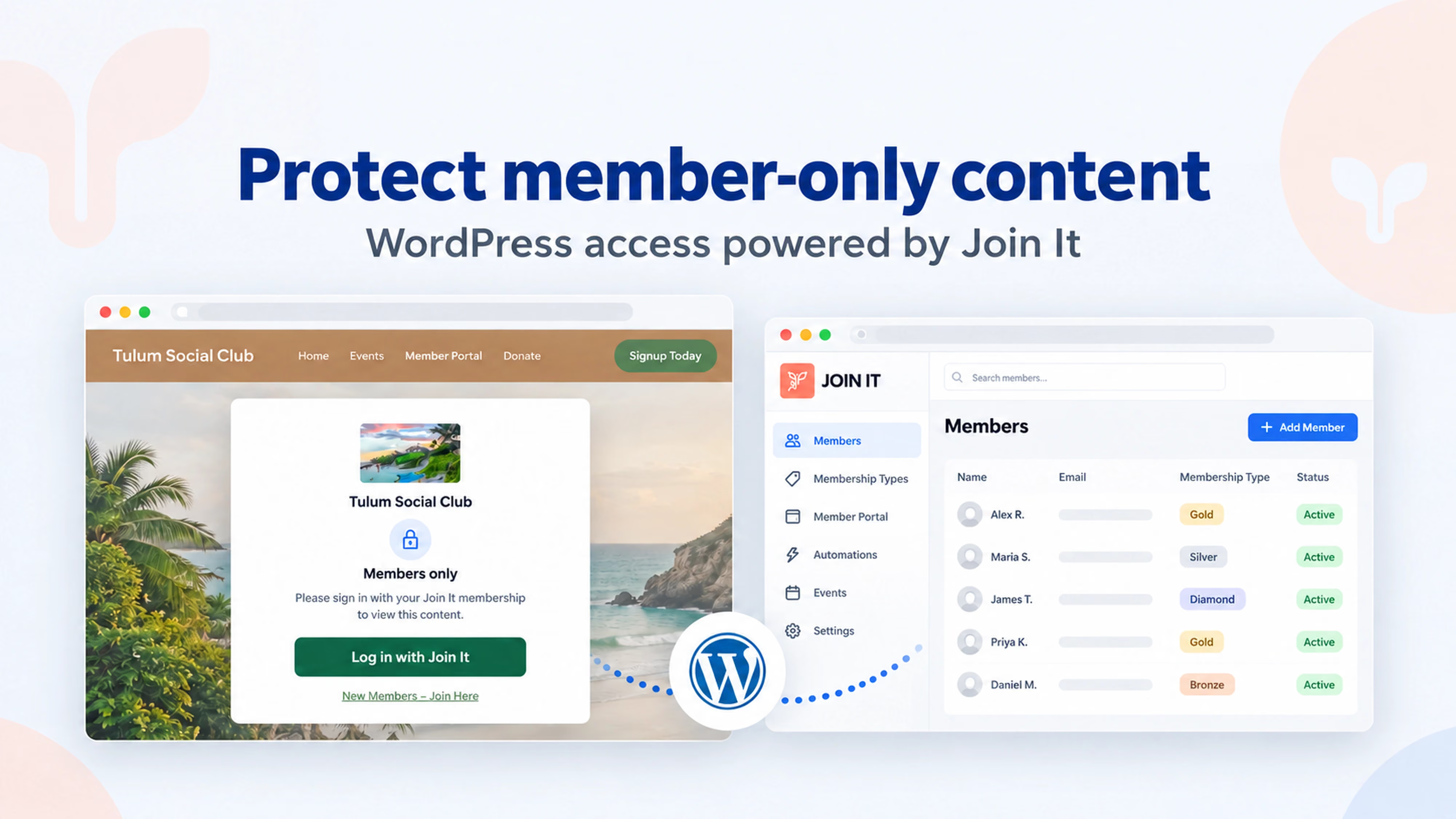


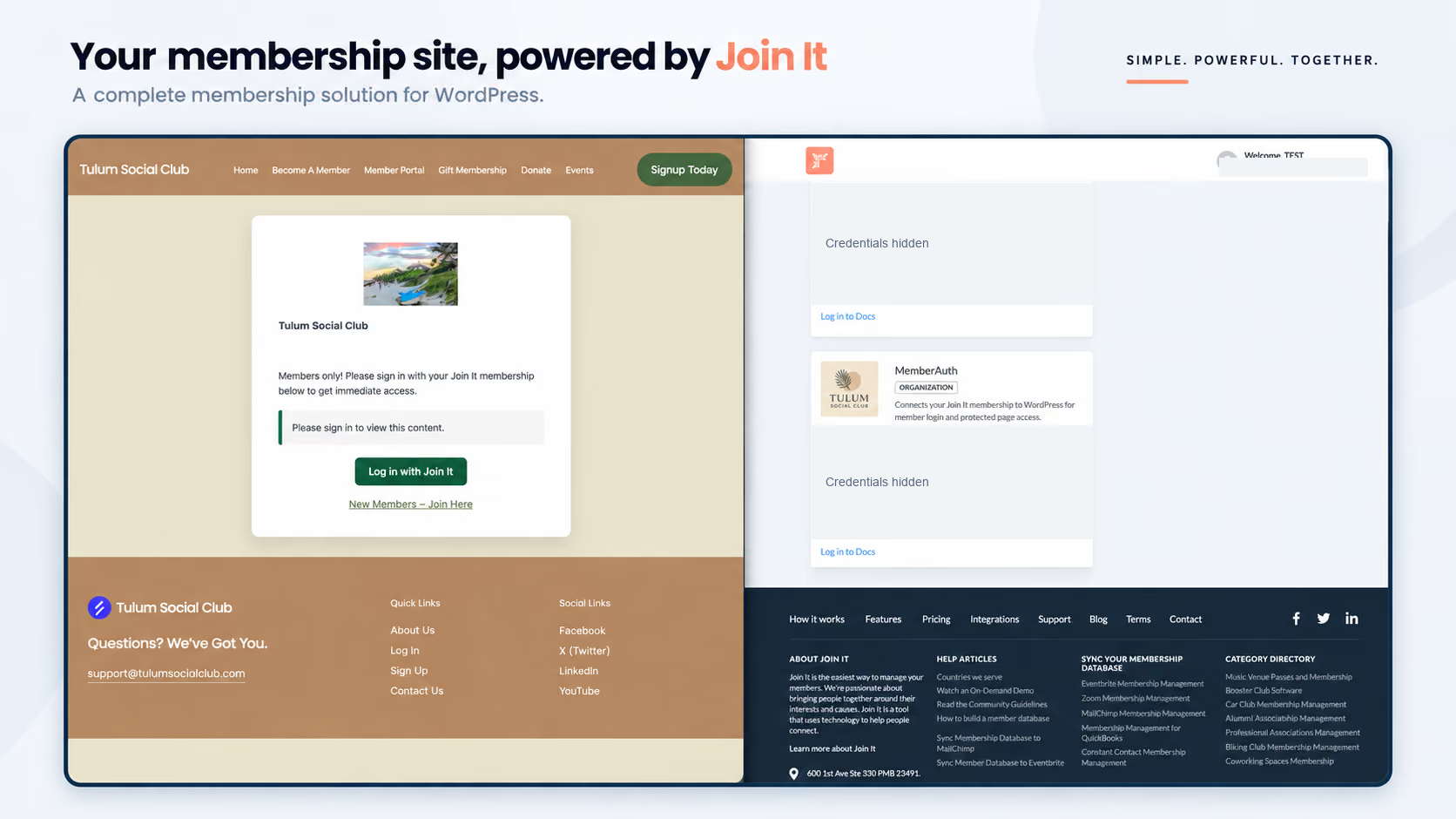
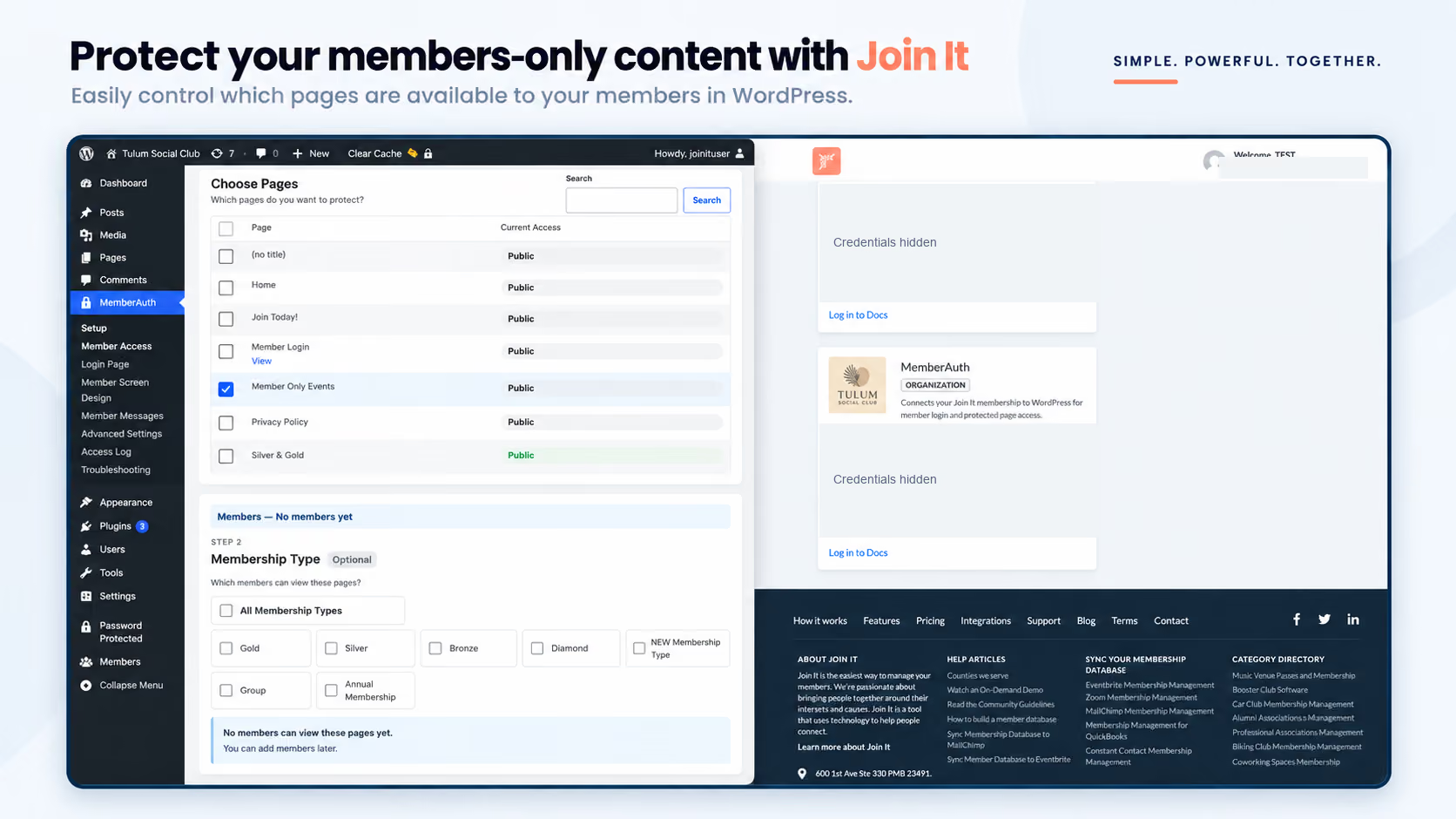
Join It’s WordPress plugin lets members log in to your WordPress website using their Join It account. It also lets your organization protect members-only content based on Join It membership type and status. You can use it to make selected pages available to eligible members, such as a resource page for active members of selected membership types.
You put care into creating benefits your members value. Whether those benefits include useful guides, community updates, or resources for different membership levels, your website gives members a place to find them.
Here’s how the plugin can help, along with a few practical ways to plan your members-only content.
What does the Join It WordPress plugin do?
The plugin connects member login and content access on your WordPress website with membership information in Join It.
It supports two related tasks:
- Member login: Members sign in to WordPress using their Join It account.
- Content protection: Your organization decides which members can view protected content based on their membership type and status.
For example, you could create a page for active members whose membership types include access to that resource. Signing in identifies the member, while the page’s access rule determines whether their membership qualifies.
The plugin is now published on WordPress.org.
What are membership type and membership status?
Membership type identifies the category of membership someone holds within your organization. Membership status describes its current state, such as active.
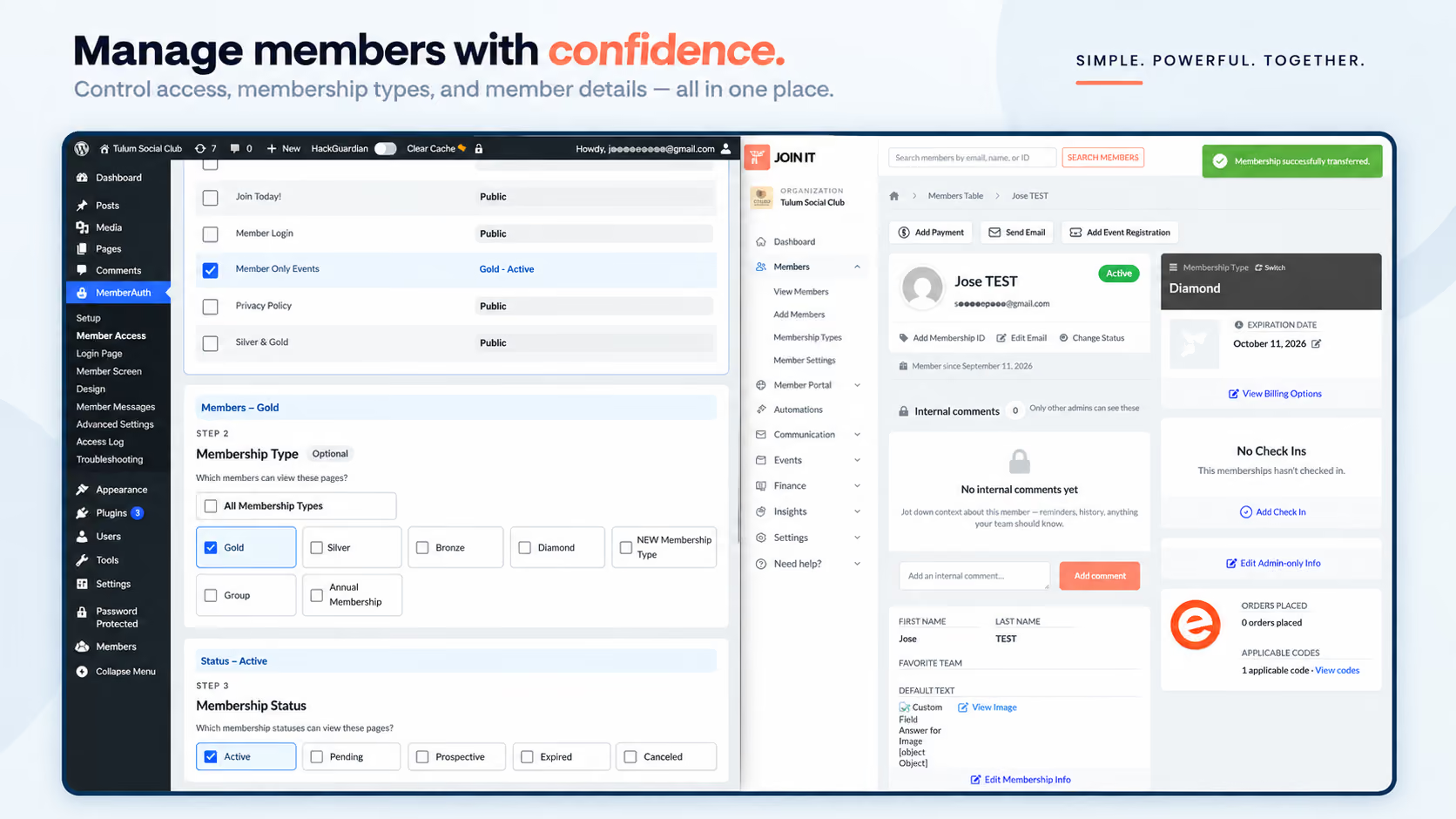
Both matter when you’re deciding who should receive a particular benefit. A page intended for active members of a particular membership type needs an access rule that accounts for both that type and active status.
If you’re still deciding how to organize your membership options, our guide to multi-tier memberships explains how different membership types can fit your organization.
What content could you make available to members?
Start with something your members already find useful. You don’t need a large collection of content to give them a reason to visit.
The examples below show ways you could organize protected WordPress pages. They’re ideas for planning your content, rather than preset options in the plugin.
A club might start with a page of member updates. An association might offer written resources for a particular membership level. Choose a starting point that reflects the benefits you’ve promised your community.
For broader planning ideas, see our guide to building a membership website.
How should you plan your members-only pages?
A little planning helps you create access rules that are clear for your team and understandable for members.
1. Choose one useful page to start with
Pick content that answers a recurring member question or delivers an existing benefit. Starting with one page gives you a manageable way to review the experience before expanding it.
2. Write down who should have access
Be specific about both membership type and status.
For example: “This page is for active members whose membership types include access to these resources.”
That sentence gives your team a clear rule to work toward and makes it easier to check that the page behaves as intended.
3. Explain the benefit to members
Let members know what the page contains, who it’s for, and where to sign in. Use the membership names they already recognize.
A clear description helps members understand what’s included in their membership before they try to access the page.
4. Test the member experience
Before sharing the page widely, test with a member who meets the access requirements and one who doesn’t. Also check what a signed-out visitor sees.
As part of that review, confirm how access responds to a membership type or status change. This helps your team answer questions confidently when a member upgrades or renews.
How does this fit with your Join It membership setup?
Join It is membership management software that helps organizations manage their members. The WordPress plugin connects part of that membership experience with the content on your website.
For your team, the practical starting point is simple: decide which WordPress pages are membership benefits, then identify the membership types and statuses that should qualify for access.
This is particularly relevant if your organization already uses Join It and WordPress and wants members to sign in and view content connected to their membership.
Before setting it up, confirm the plugin’s requirements for your WordPress site and Join It plan. If you’re unsure how your membership structure would work with it, our team can help you think through the details.
Frequently asked questions
Can members log in to WordPress with their Join It account?
Yes. The Join It WordPress plugin lets members use their Join It account to log in to a connected WordPress website.
Can I restrict WordPress content by membership type?
Yes. The plugin supports content access rules based on Join It membership type and status. For example, you can make a page available to active members of selected membership types.
Can more than one membership type access the same page?
Yes. You can select more than one membership type in an access rule, allowing active members of those types to view the same protected page.
What should I put on a members-only page?
Start with a benefit your members already value, such as written resources, member updates, or information for their membership level. Make the page’s purpose and eligibility clear so members know what to expect.
Start with one benefit your members will use
A useful members-only area can begin with a single page. Choose a resource, decide which memberships should have access, and check the experience from a member’s perspective.
To see the plugin in action, watch the WordPress plugin demonstration.
You can also visit our WordPress integration page to explore connecting your website with Join It. If you have questions about your organization’s setup, get in touch. We’d be happy to help.
.avif)
Guides from the Experts
Through our work with 4,000+ organizations - we’ve put together helpful guides to assist; regardless of where you are on your journey.
.webp)

A Complete Guide to Membership Organizations
Everything you need to know to manage and grow your membership business
.webp)
Maximize Membership Retention: 10 Proven Strategies
Tried and true strategies that not only win membership, but keep them

Build a Membership Website: A Step-by-Step Guide
Your one-stop resource for knowing all the features your modern membership website needs
Ready to start your free trial?
Our membership software is intuitive to use and even easier to test for yourself.