How to Create a Members-Only Area in WordPress
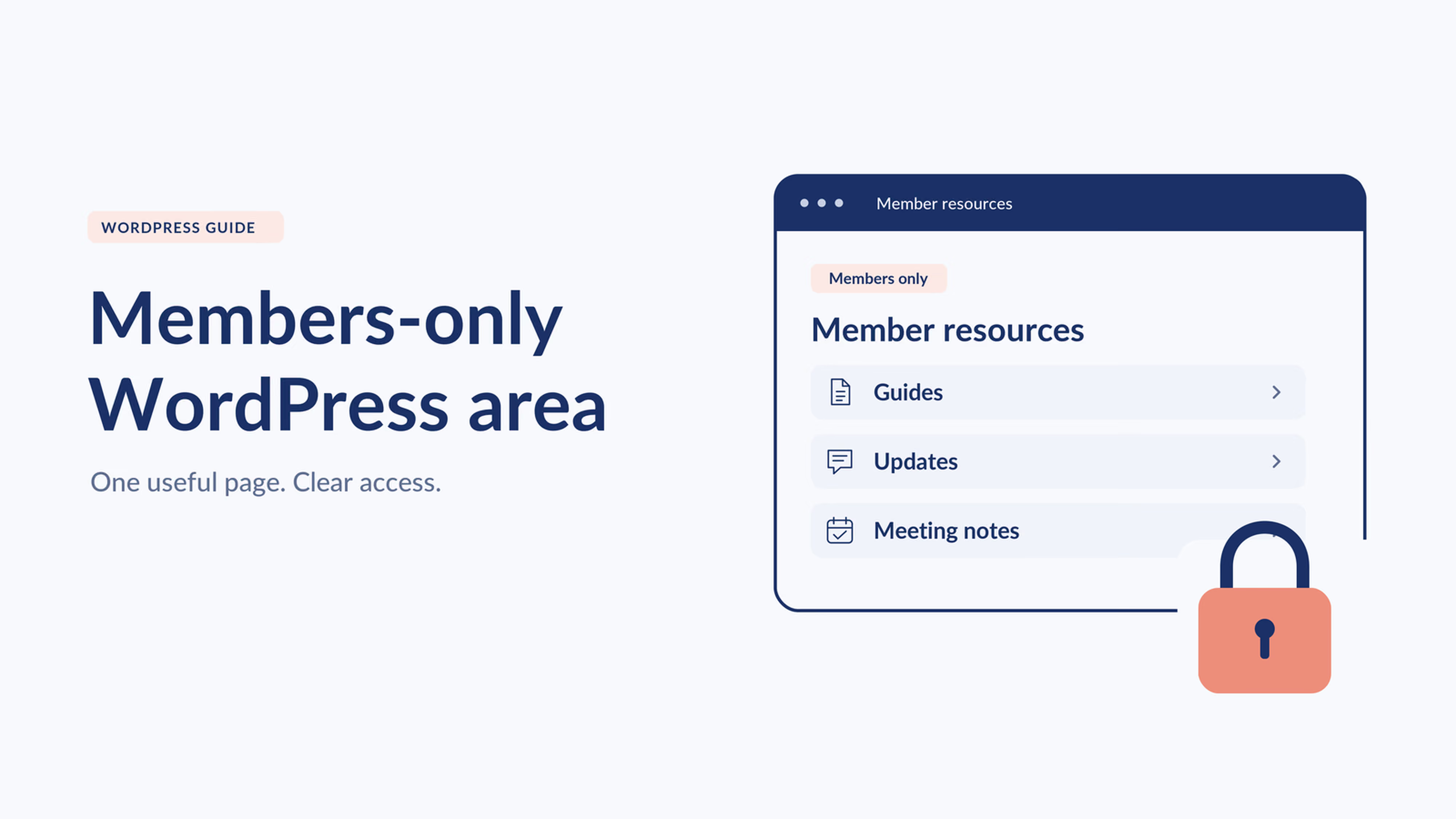


You can create a members-only area in WordPress by adding a membership plugin or connecting your website to an external membership management platform. Create the pages, set who can access them, provide a member login and test your restrictions. WordPress also offers password-protected pages for simple sharing, but a membership area usually needs individual access rules tied to accounts or membership eligibility.
Before choosing a tool, decide what “member” means for your website. Is it anyone with a free account, someone paying for online content, or an active member of your club or association?
That decision helps you choose both the right access controls and the best place to manage your membership.
What is a members-only area?
A members-only area is a section of your website that eligible members can access after signing in. It might be one resource page or a collection of guides, updates and other benefits.
For example, an association could offer a resource library for active members. A club could create a page containing meeting notes and member announcements.
Keep the first version useful and manageable. One page that answers a regular member question is a good starting point.
What types of WordPress content can you restrict?
Depending on the tools you choose, you can protect:
- Individual pages, such as a member welcome page.
- Posts or groups of posts, such as a member newsletter archive.
- Selected sections of a page, while leaving an introduction public.
- Downloads, recordings or other resources, with suitable protection for the files themselves.
Check the difference between protecting a page and protecting what it links to. A PDF or video may still be accessible through its direct address if only the surrounding page is restricted. MemberPress's file-protection documentation explains why files need their own controls.
Write down exactly what you want to protect before comparing products. “A page of member updates” and “a private video library” can require different setups.
Can WordPress create a members-only area without a plugin?
WordPress includes basic content visibility settings. You can make a page password-protected or private, but those settings serve different purposes.
According to WordPress's content visibility documentation, a password-protected page requires a password to view its content. A private page is limited to users with the appropriate permissions, normally administrators and editors.
A shared password can suit a small, simple sharing task. It does not give each member a separate entitlement that follows their renewal or expiration.
For a membership program, use a tool that can manage the access rules you need. Giving ordinary members an editor or administrator account would provide much more access than they need to read your resources.
What are the main ways to create a private member section?
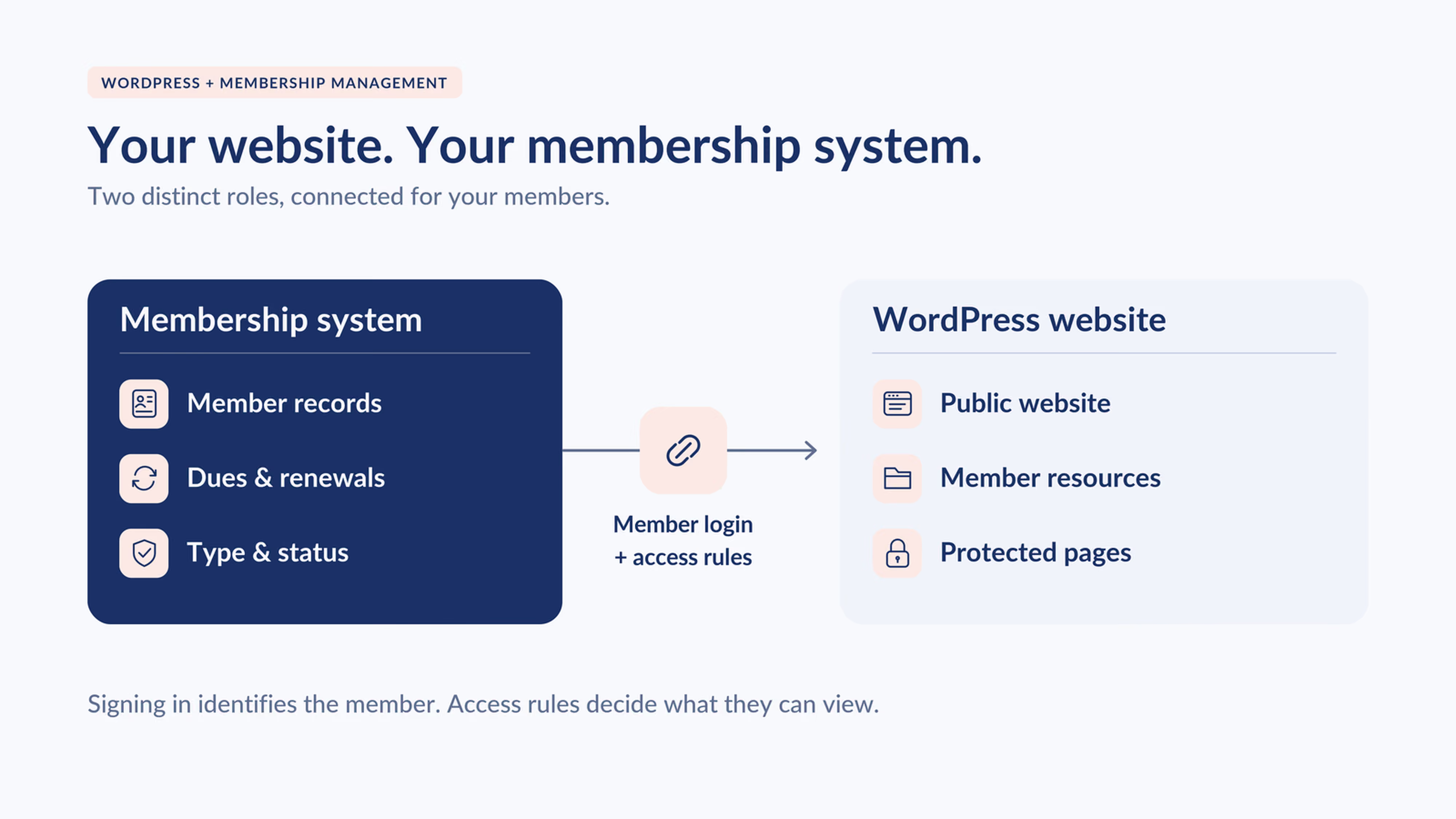
The key distinction is where your membership is managed. You can keep WordPress as your website while another platform manages member records and dues.
Which WordPress membership plugins should you consider?
MemberPress, Paid Memberships Pro and Ultimate Member are useful options to investigate. The right choice depends on your membership model, content and team's working preferences.
This guide is published by Join It. The comparison below is a starting shortlist based on documented capabilities, rather than a ranking.
MemberPress
MemberPress uses rules to control access to content. It is worth evaluating when your membership offering centers on protected WordPress content and you want to build access around membership products.
Before choosing it, identify the content types you need to protect and the extensions or hosting configuration those controls require.
Paid Memberships Pro
Paid Memberships Pro provides membership-based controls for pages, posts and parts of content. It is worth evaluating when you want to organize access around membership levels inside WordPress.
Check how the tools you need fit together, including your page builder, payment setup and any additional content types.
Ultimate Member
Ultimate Member includes registration, login, user profiles, member directories and content restriction. It is worth evaluating when the member account and community experience are central to your site.
If you plan to charge dues, review the payment and subscription features required for your particular setup, including any paid extensions.
How should you compare these options?
Compare the total ongoing cost: licenses or subscriptions, required extensions, hosting, payment processing and setup or maintenance help. A low entry price is useful only if the complete setup meets your needs.
Can I manage membership outside WordPress?
Yes. You do not need to keep your membership database inside WordPress to offer a members-only WordPress website.
With this approach, the external platform manages membership information, while WordPress publishes the website's content. A connection identifies the member and supports the rules controlling access.
This can suit an organization whose memberships include much more than online reading: annual dues, in-person activities, different membership types and ongoing renewal administration.
It also helps separate the team's responsibilities. Your website editor can manage resources while the membership team maintains records in its membership system.
Be clear about the connection you need. A checkout button or a link to a member portal helps people join or manage their account. Protecting pages on WordPress requires content-access controls as well.
How does Join It work with WordPress?
Join It manages the membership database, payments, renewals and membership status. WordPress can remain the place where you publish your public website and protected resources.
Join It's WordPress plugin supports member login using a Join It account and content access based on membership type and status. For example, a page can be intended for active members of selected membership types.
This makes Join It worth considering for clubs, associations and nonprofits that want membership administration in a dedicated platform while keeping an existing WordPress website.
For the product-specific explanation, read Create Members-Only WordPress Content with Join It. You can also explore the WordPress integration and confirm the current plugin and plan requirements with our team.
How do you set up a members-only area in WordPress?
1. Define one member benefit and its audience
Choose the first page or resource you will offer. Write one clear rule, such as: “Active members of our standard and supporter memberships can view the resource page.”
If your membership is free, decide whether access starts immediately after registration or after an approval step.
2. Choose where to manage memberships
Choose a WordPress membership plugin if you want membership administration centered on your website.
Consider an external platform if your organization needs a dedicated place for member records, payments and renewals alongside WordPress.
Before installing anything, confirm that your hosting setup supports your chosen plugins and that someone will maintain the site.
3. Install and configure the chosen tools
For a WordPress membership plugin, follow its setup guide to create your membership levels, account pages and any payment settings.
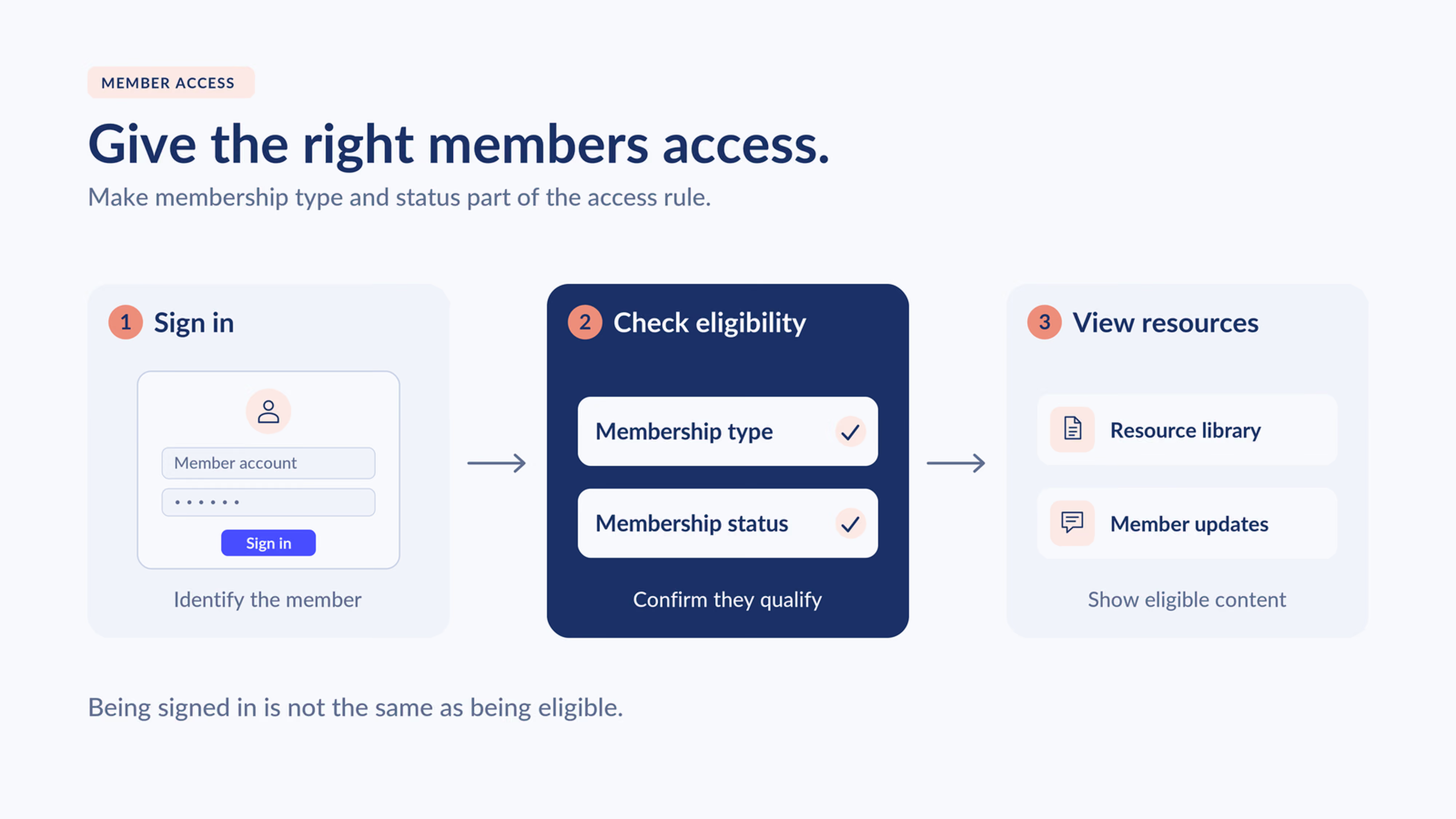
For an external platform, set up your membership records there and configure the supported WordPress connection. Confirm both member login and content-access controls. Signing in identifies someone; the access rule decides which resources they may view.
For Join It, use the current plugin guidance provided by the team for your account and site.
4. Create your member pages
Create a clear starting page, such as “Member Resources,” and add the first benefit.
Give members an obvious way to reach login and account help. Keep public pages explaining the membership available to prospective members.
5. Apply your content restrictions
Set who can view each protected resource using your chosen tool. Make sure the rule matches both the membership group and any required status.
For example, “all logged-in users” may be too broad if resources are intended only for current paying members.
Check downloads and embedded content separately where needed.
6. Test the experience as different visitors
Use test accounts rather than judging the experience only while signed in as an administrator.
Check:
- A signed-out visitor.
- An eligible active member.
- A logged-in person whose membership does not qualify.
- A member whose membership has expired.
- A member who changes membership type or renews.
Test direct page and file links, mobile navigation, and the messages people see when they need to sign in or renew. Confirm how quickly a status change affects access, including an existing login session.
7. Introduce the area to members
Send a short message explaining the benefit, where to sign in and how to get help.
Ask a few members to try it before adding more resources. Their questions can help you improve page names, instructions and navigation.
Which approach is right for your organization?
Choose based on the work your team needs to do every week.
For a simple shared page: Password protection may be enough when a shared password meets your needs.
For a membership centered on website content: A WordPress membership plugin may be a practical fit when the team wants to manage content access and memberships together.
For a club, association or nonprofit with broader membership administration: An external platform is worth evaluating when member records, dues and renewals need a dedicated home.
Ask who will answer member questions, maintain the website and update access rules. The best setup is one your team can confidently run after launch.
Frequently asked questions
Can I create a members-only area on WordPress for free?
You can use WordPress's built-in password protection, and some membership plugins offer free core features. Hosting, payment processing, extensions or support may add costs. Check the complete setup required for your membership.
What is the best WordPress membership plugin?
There is no single best choice for every organization. Compare MemberPress, Paid Memberships Pro and Ultimate Member against your content, account and payment requirements. Include an external membership platform if your needs extend beyond the website.
Can members use one login for Join It and WordPress?
The Join It WordPress plugin lets members sign in using their Join It account. Confirm the current setup requirements for your site and plan before implementation.
Does linking to a member portal make my WordPress pages private?
A portal link takes members to another destination. Protecting content that remains on WordPress requires access controls on WordPress itself.
How do I remove access when a membership expires?
Use access rules that account for membership eligibility, and test what happens when a membership expires. Confirm the tool's update and session behavior rather than assuming an existing login ends immediately.
Can I protect PDFs or videos by putting them on a private page?
Page protection may leave a file's direct address accessible. Use suitable file or video-hosting controls and test the direct link as a visitor who does not qualify for access.
Start with one useful member page
Creating a members-only area starts with a clear benefit and a clear access rule. Choose where your membership will be managed, configure the connection or plugin, and test the member experience before expanding it.
If you want WordPress to handle your website while Join It handles membership administration, explore our WordPress integration. We can help you work through the right setup for your organization.
.avif)
Guides from the Experts
Through our work with 4,000+ organizations - we’ve put together helpful guides to assist; regardless of where you are on your journey.
.webp)

A Complete Guide to Membership Organizations
Everything you need to know to manage and grow your membership business
.webp)
Maximize Membership Retention: 10 Proven Strategies
Tried and true strategies that not only win membership, but keep them

Build a Membership Website: A Step-by-Step Guide
Your one-stop resource for knowing all the features your modern membership website needs
Ready to start your free trial?
Our membership software is intuitive to use and even easier to test for yourself.